The HubSpot Sales plug-in for Office 365 allows you to log emails, track opens, and access HubSpot tools directly from Outlook.
Before You Start
-
You must have a HubSpot user account with access to Sales Hub
-
You must use Office 365 / Outlook (desktop or web)
-
You need permission to install add-ins in Outlook
Installation Steps
-
Log in to HubSpot
-
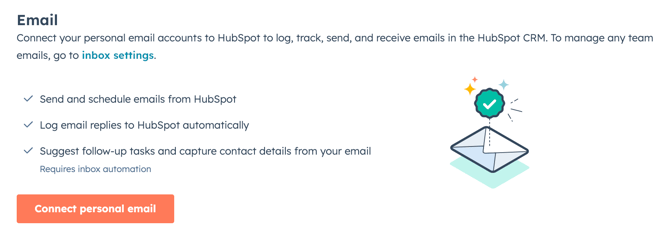
Go to your HubSpot account and navigate to
Settings → General → Email → Connect personal email
-
-
Install the Outlook Add-In
-
Select Office 365 when prompted
-
Click Install HubSpot Sales for Outlook
-
Follow the Microsoft prompts to complete installation
OR
-
Open Outlook
-
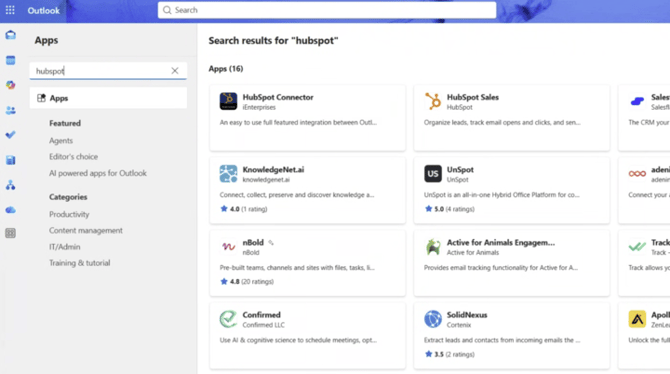
Click Apps > Add Apps
-
Search for HubSpot Sales

-
Click Add
-
-
Sign In
-
Open Outlook
-
Click the HubSpot icon in your inbox or email compose window
-
Log in using your HubSpot credentials
-
Confirm It’s Working
-
Open an email draft in Outlook
-
You should see options to:
-
Log email to HubSpot
-
Track email opens
-
Insert templates or meeting links
-
Common Troubleshooting Tips
-
If you don’t see the add-in, restart Outlook
-
Confirm you’re logged into the correct HubSpot account
-
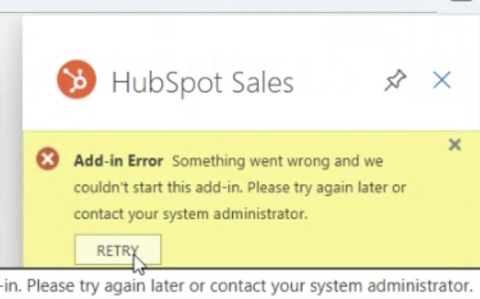
If add-ins are blocked (with error message as shown below), contact your IT administrator