
Comments in Teamwork are the primary record of communication for every task. Knowing where to comment, who to tag, and how to manage notifications keeps projects moving and inboxes from becoming overwhelming.
Where to Leave Comments
Parent Task — Default for All Communication The parent task is where all team-facing communication lives. Use it for questions, concerns, strategy input, asset feedback, or anything the broader team should be aware of. All relevant assets should be linked directly in the parent task description so everything is easy to find in one place.
Subtask — Individual-Specific Notes Only Only comment in a subtask if the information is specific to you and irrelevant to the broader team. Good examples include flagging that a due date falls on a day you're OOO, or noting a capacity concern. In both cases, leave the comment in your subtask and tag the PM directly.
|
Example of Comment |
Where to Comment |
|
Image requests added to each email |
Parent Task |
|
Left comments in HubSpot with feedback |
Parent Task |
|
FYI I’ll be OOO on Wednesday when this task is due |
Subtask |
Managing Notifications
When you leave a comment on a task, you automatically become a follower. Every follower receives a notification for every comment on that task, regardless of who is tagged.
Before saving a comment, check the Notify section:
- Remove followers who don't need to see your comment. If your message is directed at one person, there's no need to ping the whole team. To remove someone, simply click their icon in the Notify section and hit the X.
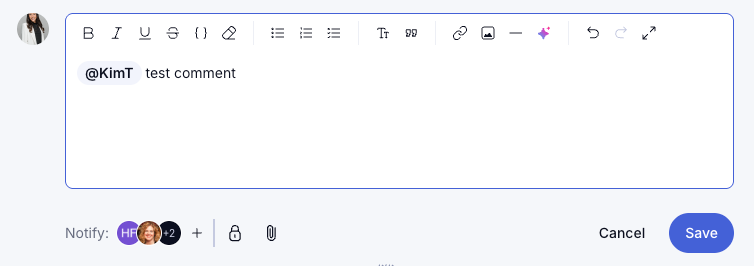
- Add someone for visibility (optional) without tagging them directly. If someone should be aware of a comment but it isn't directed at them, add them to the Notify section as an FYI rather than using an @mention in the body of the comment.
Using Your Teamwork Inbox
We recommend managing all Teamwork notifications directly in your Teamwork inbox rather than through Gmail. Your Teamwork inbox gives you a cleaner, more actionable view of everything you've been tagged in or are following, without the noise of your email inbox getting in the way.
To keep your Gmail clean, set up a filter that automatically routes Teamwork notification emails out of your main inbox and into their own label. Follow this guide to set it up: Create Gmail Filter to Organize Teamwork Notifications
Inbox vs. the Notification Bell
You may notice that updates appear in both places, which can be confusing. The notification bell shows all activity across every project you're on, regardless of whether it involves you directly. Your inbox is a curated version that only surfaces updates relevant to you: tasks assigned to you, comments where you're tagged, and items you're following or have participated in.
Think of the bell as a firehose and the inbox as your actual to-do list. Use the inbox to manage your work and archive items once they've been addressed.
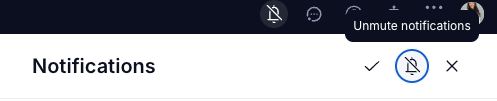
If you find the bell distracting, you can mute it by opening the Notifications panel and clicking the bell icon at the top. Click it again to unmute. While muted, the bell will appear with a strikethrough and your notification count will not update. Note that muting the bell also pauses push and email notifications.
Who to Tag
Tag the AM for: Strategy questions, tactic decisions, IR feedback, campaign goals, and anything client-facing or directional.
Tag the PM for: Scheduling, deadlines, additional task requests, and any operational or resourcing needs.
Requesting Additional Work: If you need someone to take on an extra task or step, tag the PM to flag the request and tag the relevant team member with your specific ask in the same comment. Be clear about what you need and why.
Example: "@Tami, can you IR this workflow? I wasn't sure if I set up the enrollment triggers correctly. Details below. @[PM name] flagging that this will need to be scheduled as an additional step for Tami."
Comment Best Practices
- Be specific. When tagging someone, make it clear what you need from them. Reference the parent task description rather than re-linking assets in the comment. Example: "@Mak, all assets are linked in the parent task description. The only item requiring graphics is [description of request]."
- Keep comments actionable. Teamwork comments should move the work forward. Save acknowledgments like "looks great!" or "thanks!" for Slack.
Escalation Protocol
A comment should always be left in Teamwork regardless of urgency. It is the source of record for every task.
|
Situation |
Action |
|
General question or need |
Comment in the Teamwork parent task |
|
High-priority item |
Comment in Teamwork + post in client Slack channel with a link to the task |
|
Same-day need, no response to your Teamwork comment |
Move the conversation to Slack with a link to the task |
Response Expectations
The expected response time for a tagged comment is the same day. Everyone is responsible for managing their work accordingly. If you are waiting on a response in order to complete your task, do not wait until the day is over to follow up. Use your best judgment:
- Check the person's Google Calendar to see if they have been in meetings
- Send them a Slack message if you need a quick answer
- Schedule a 15-minute call on their calendar if that is the most efficient path forward
Keep PTO in mind. If someone is out, plan ahead and escalate to the appropriate person so your work is not blocked.
Leaving a Private Comment
If you need to leave a comment that should not be visible to everyone on the project, you can make it private. Click the lock icon at the bottom of the comment editor and a window will appear titled “Make this comment private.” From there, you can choose to make it visible to everyone on the project or limit it to specific people only.
This can be useful when a client or external stakeholder has access to the project and you need to have an internal conversation that isn't meant for them or if you want to keep a personal reminder or note on the task to yourself.
IR Feedback Process
When completing an internal review (IR) on a deliverable:
- Leave your detailed feedback directly in the asset (Figma, HubSpot, Google Doc, Markup, etc.)
- Go to the parent task in Teamwork and leave a comment confirming you have completed the IR, along with a high-level summary of what you think needs to be changed.
This ensures the assigned team member has both the detailed markup and a clear overview in one place, without having to dig through the asset to understand the scope of changes needed.